NoDoze: Don't Let Your Mac Fall Asleep On The Job
The whole promise of an agent is that you can walk away.
You hand it a task — refactor this module, work through these 200 rows, run the test suite until it's green — and you go make coffee. The agent runs in a loop, doing something, checking the result, deciding what's next, and grinding through the work without you hovering over it. That's the entire point. You stop babysitting and let it work.
Except there's a small, stupid problem that nobody warns you about. You close your laptop, or you just stop touching it for a few minutes, and macOS does what it's always done: it goes to sleep. And when your Mac sleeps, your agent doesn't pause politely and resume later. The process freezes. The network connection drops. The run you walked away from is dead, and you come back to a half-finished task and a spinner that stopped spinning twenty minutes ago.
The faster the agents get, the more this stings. You're not waiting because the work is slow. You're waiting because your computer took a nap.
The obvious fixes don't quite work
The first thing most people reach for is one of the "keep awake" apps — Amphetamine, Caffeine, that little coffee-cup icon. They're good apps. But they were built for a different problem: keeping the screen on while you watch a video or give a presentation. They hold the Mac awake while the lid is open.
The moment you close the lid, macOS overrides all of that and sleeps anyway. And closing the lid is exactly what you want to do when you've handed off a long-running task and you're carrying the laptop to the couch. The one scenario that matters most for agents is the one those apps don't cover.
There is a way to fix it properly. macOS has a built-in power-management command called pmset, and the right incantation tells the system to never sleep — lid open, lid closed, doesn't matter:
sudo pmset -a disablesleep 1That works. But now you're memorizing terminal commands, typing your password, and remembering to run the reverse command before you throw the laptop in a bag — because that same setting will happily drain your battery and cook your Mac if you forget it's on. It's a fix, but it's a fix you have to think about, and the things you have to think about are the things you forget.
One toggle, and it handles the lid
So I built a tiny menu bar app called NoDoze that turns that whole dance into a single switch.
It's deliberately boring. There's a coffee-cup icon in your menu bar. You click it, you flip one toggle, and your Mac stays awake — including with the lid closed. Flip it back and normal sleep returns. That's the entire app. No accounts, no settings screen, no twelve preference panes. Under the hood it's running the exact pmset commands above, including the lid-close part those other apps skip, so you get the real fix without touching the terminal.
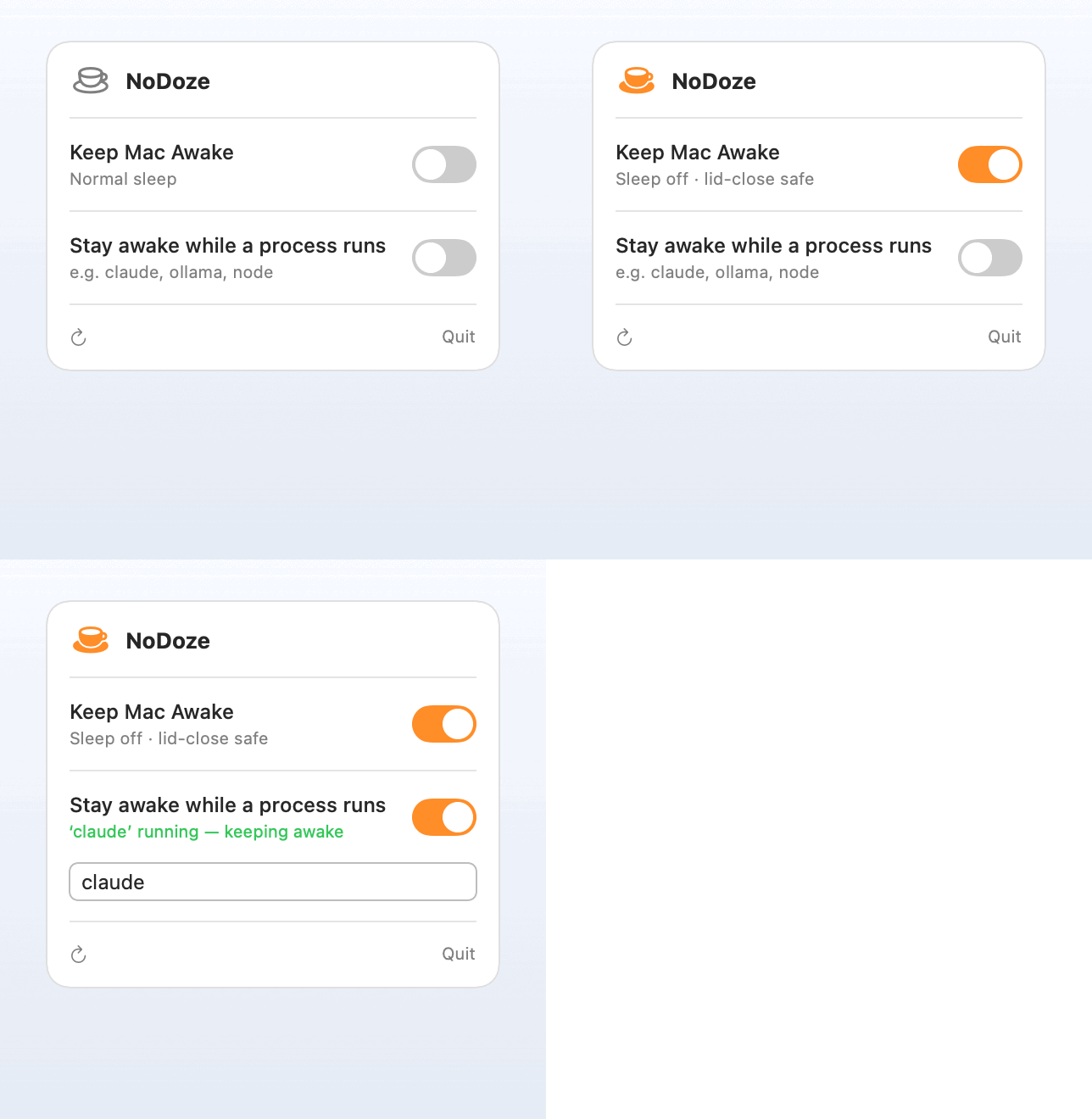
But the toggle you have to remember to flip is still a toggle you can forget. So there's a second mode that I actually use more than the first one.
You tell NoDoze the name of a process — claude, say, or ollama — and it watches for it. While that process is running, your Mac stays awake. The moment it exits, NoDoze quietly hands sleep back to the system. You don't flip anything. You don't remember anything. Your laptop stays awake exactly as long as there's an agent doing work, and goes back to sleeping normally the instant there isn't.
The best version of a tool you have to remember to use is the version you don't have to remember to use.
That's the part that makes it feel right for the agent era. The whole reason you're running agents is to stop doing the manual, repetitive thing yourself. A keep-awake switch you have to toggle by hand is just one more manual, repetitive thing. Letting the app follow your agent's lifecycle removes it entirely.
It's open source, it's free, and it lives on GitHub if you want to read every line or build it yourself.
Installing it
NoDoze installs through Homebrew, the standard package manager for the Mac. If you don't have Homebrew yet, paste the one-line installer from their site first. Then it's two commands:
brew tap davidcjw/tap
brew install --cask davidcjw/tap/nodoze
That's it — a coffee cup appears in your menu bar. Click it and you'll see the toggle.
One honest caveat: NoDoze isn't "notarized." That's an Apple process that costs money to enroll in, and this is a free side project, so I skipped it. The practical effect is that the cask already strips the security flag that would otherwise make macOS nervous about an unsigned app — so for almost everyone, it just opens. If your Mac is being especially cautious and refuses, this one line tells it to trust the app:
xattr -dr com.apple.quarantine /Applications/NoDoze.appThe first time you flip the switch, macOS asks for your admin password — the same prompt any app gets when it changes a system setting. Approve it and you're done.
The "stay awake while a process runs" mode needs that same permission, but because it works quietly in the background, it can't keep stopping to ask. So the first time you turn it on, NoDoze sets itself up with a single password prompt — and after that the watcher runs silently, following your agent in and out of existence. No scripts, no terminal, nothing to remember.
And the permission it asks for is deliberately narrow. It's not free rein over your system — it's the exact handful of sleep on/off commands and nothing else. You can read every line of what it does on GitHub; that's the nice thing about open source.
None of this is clever. It's a coffee cup and a switch. But that's sort of the point — the friction it removes is small and constant, the kind you stop noticing precisely because it's always there. You hand a task to an agent, you close the lid, and the work keeps going. The way it was supposed to.